
A governance guide for identity architects and Entra administrators, built from Microsoft's built-in roles reference, privileged roles tables, Graph permission cautions and restricted administrative unit documentation reviewed October 9, 2026. It gives a takeover-based tier model, assignment rules per tier, the controls that stop lower tiers reaching higher accounts with their documented limits, and a read-only snapshot for detecting role changes.
At a glance
Key findings
- On October 9, 2026, Microsoft's built-in roles reference (dated July 17, 2026) listed 136 roles, 35 with the preview PRIVILEGED label; the flag considers only
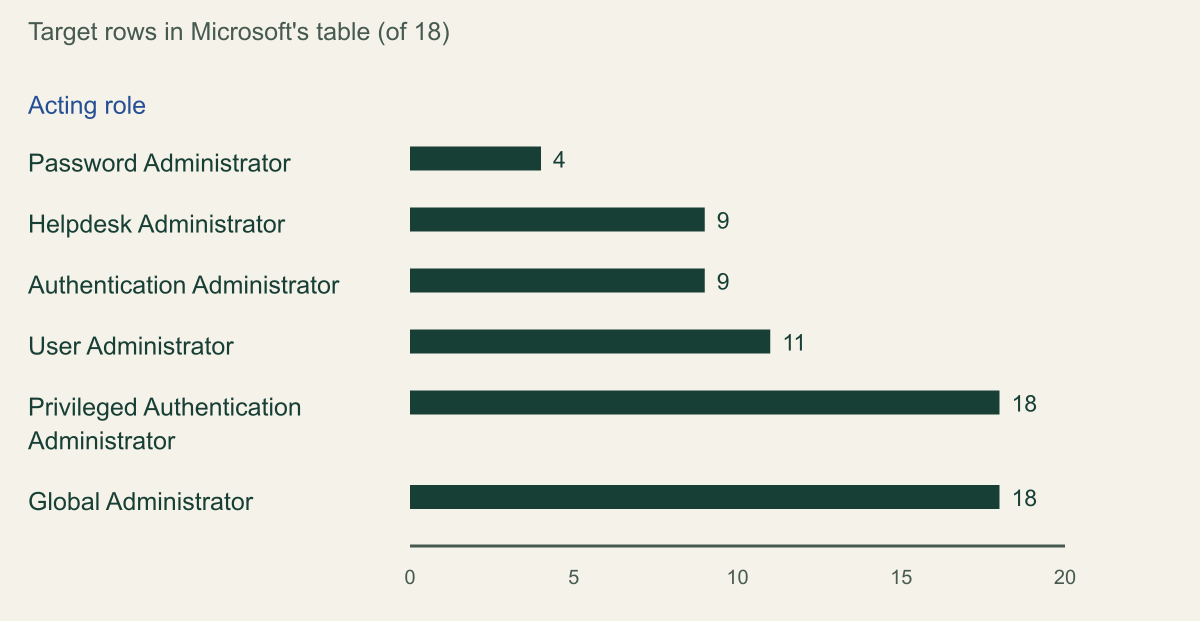
microsoft.directoryactions, and service roles such as Exchange Administrator carry no label. [1][4] - In Microsoft's password reset table, Password Administrator reaches 4 of 18 target rows, Helpdesk and Authentication Administrator 9, User Administrator 11, and only Privileged Authentication Administrator and Global Administrator all 18. [3]
- Every reset-capable role can reset users with no administrator role, and Microsoft's role descriptions warn that such a user may own a privileged application or an Azure subscription. [1][3]
- Members and owners of role-assignable groups can be reset only by Privileged Authentication Administrator or Global Administrator, with a limit of 500 such groups per tenant. [3][16]
- Restricted management units are fixed at creation, capped at 100 per tenant and closed to PIM and access reviews; protected actions cover Conditional Access changes but not role assignment or password reset. [19][20]
Tier by what a role can take over
Put each Entra role, and each principal that can act like one, in the tier of the most valuable thing it can take control of, either directly or through one documented step. Role names are a weak guide. Helpdesk Administrator and Global Administrator both carry Microsoft's PRIVILEGED label, yet in Microsoft's own password reset table the first can reset 9 of the 18 kinds of target account and the second all 18. That table, its companion for sensitive actions such as changing userPrincipalName or onPremisesImmutableId, and the warnings written into individual role descriptions are enough to draw the takeover graph a tier model needs. [1][3]
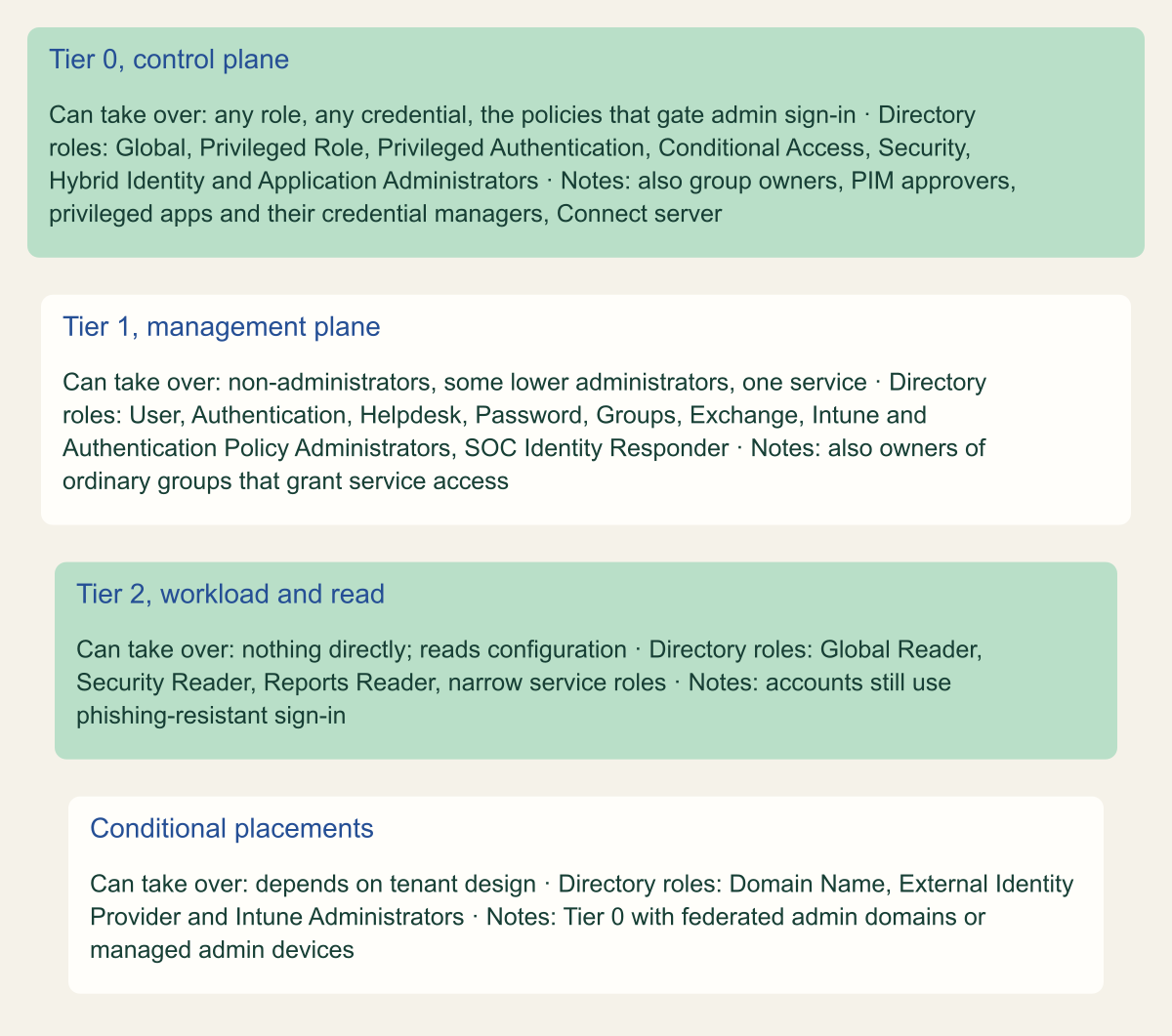
Three tiers come out of that reading. Tier 0 can assign any role, change any credential, alter the policies that gate administrator sign-in, or decide how the tenant authenticates through federation and synchronization. Tier 1 can take over accounts with no administrator role and a bounded set of lower administrators, or run a whole service such as Exchange Online or Intune. Tier 2 reads, or manages a narrow scope. Several members of Tier 0 hold no directory role at all: owners of role-assignable groups that carry Tier 0 roles, approvers of Tier 0 activations, applications whose Graph permissions let them grant roles, anyone who can add a credential to such an application, and the Microsoft Entra Connect server. [1][3][5][10][11][15]
Enforcement follows a short rule set. Make Tier 0 eligible-only through Privileged Identity Management, on dedicated cloud-only accounts, with a Conditional Access authentication context at activation. Move any ordinary user who holds Tier 0 power out of reach of the lower tiers, which in Entra means a role-assignable group. Use restricted management administrative units for executives and other high-value non-administrators rather than for Tier 0 administrators, and put protected actions on Conditional Access changes. Each control has documented limits, covered below. The counts here were taken on October 9, 2026 from the built-in roles reference dated July 17, 2026, which lists 136 roles with 35 labeled privileged. The label is still in preview, so the tier list needs a review trigger, not a one-time decision. [1][3][15][16][19][20]
Why the privileged label is not a tier model
Microsoft defines a privileged permission as one that can delegate management of directory resources to others, modify credentials, authentication or authorization policies, or read restricted data, and a privileged role as any built-in or custom role holding at least one such permission. In Microsoft Graph the flag is isPrivileged on unifiedRoleDefinition, and its definition carries a qualifier that explains several of the surprises: it considers only actions in the microsoft.directory namespace. Microsoft's own page marks the label as a preview. [3][4]
The count comes from the All roles table of the built-in roles reference. A script parsed the table in the published Markdown source and counted rows whose description carries the privileged label image, then repeated the count against the rendered Learn page. Both gave 136 roles and 35 labeled, and both carried an ms.date of July 17, 2026 when fetched on October 9, 2026. Microsoft's role guidance, dated June 1, 2026, still says Entra supports over 65 built-in roles, a small sign of how unevenly these pages move. [1][2][5]
A binary flag cannot rank. It puts Global Administrator, Helpdesk Administrator, Application Developer and four reader roles (AI Reader, Attribute Provisioning Reader, Global Reader and Security Reader) in one set. A reasonable reading is that the readers qualify under the restricted-data clause of the definition, though none of them can change anything. Security Operator and the new Entra SOC Identity Responder are labeled as well, while Microsoft limits both to acting on non-administrative accounts. [1][3]
The namespace qualifier explains the opposite problem. Exchange Administrator and SharePoint Administrator hold most of their power in service namespaces, the likely reason neither is labeled, even though Microsoft's privileged access planning guide lists both beside Global Administrator and Privileged Role Administrator as the highly privileged roles to review first. Other unlabeled roles reach further than their names suggest, as the table shows. [1][4][6]
The labeled set also moves. TrustedSec counted 28 labeled roles in a review published November 18, 2025. Comparing that list with the current table gives seven additions and no removals: Agent ID Administrator, AI Administrator, AI Reader, Authentication Extensibility Password Administrator, Entra SOC Identity Responder (in public preview from June 8, 2026), Identity Governance Administrator and Tenant Governance Administrator. The TrustedSec figure is a third party's count made by its own method, so read the gap as a direction of travel, not a measured rate. [1][7][8]
The label has also started to carry platform behavior, which is a reason to track it even though it should not define the tiers. From July 1, 2026, Entra blocks Connect Sync and Cloud Sync from hard-matching an Active Directory object onto a cloud user who is assigned or eligible for a privileged Entra role. Microsoft's announcement of the change described it as covering users who hold Entra roles, and neither page says whether privileged means the label. Until that is settled, test the behavior for any Tier 0 role that lacks the label instead of assuming it is covered. [8][9]
| Role | Label | What Microsoft documents | Tier here |
|---|---|---|---|
| Exchange Administrator | None | Listed with Global Administrator as highly privileged; manages all Microsoft 365 groups | Tier 1 |
| Groups Administrator | None | Manages members and owners of every group that is not role-assignable | Tier of the most sensitive group it can change |
| Authentication Policy Administrator | None | Sets which authentication methods every user can register and use | Tier 1, with Tier 0 change control |
| Directory Synchronization Accounts | None | Assigned to the Connect service, whose server must be treated as Tier 0 | Tier 0, with the server |
| Entra SOC Identity Responder | Privileged | Disables users, revokes sessions and resets passwords for non-administrators | Tier 1 |
| Global Reader | Privileged | Reads settings across Microsoft 365 services; takes no management actions | Tier 2 |
Read the password reset and sensitive action matrices
Microsoft's privileged roles page carries two tables that work as an adjacency list. In each, the columns are roles that can act and the rows are the roles held by the target account. The reset table covers password reset and refresh token invalidation for six acting roles. The sensitive action table covers four acting roles and eight actions, including disabling an account, changing mobilePhone, otherMails or userPrincipalName, updating onPremisesImmutableId, and deleting or restoring a user. Microsoft adds that the right to reset a password includes changing businessPhones, mobilePhone and otherMails, the properties self-service reset relies on, so a reset right is also a right to redirect future recovery. Both tables describe tenant-scoped assignments; administrative unit scope adds restrictions. [3]
Counting check marks down each column gives the reach of every acting role across the 18 target rows. Password Administrator reaches 4, Helpdesk Administrator and Authentication Administrator 9 each, User Administrator 11, and Privileged Authentication Administrator and Global Administrator all 18. In the sensitive action table, Authentication Administrator reaches 9 rows, User Administrator 11 and the two top roles 18. The rows are categories rather than equal units, and the last one, all other built-in and custom roles, stands for more than a hundred roles at once. [1][3]
Read across each row instead and the tables draw the Tier 0 boundary themselves. Six target rows are reachable only from Privileged Authentication Administrator and Global Administrator in both tables: Global Administrator, Privileged Authentication Administrator, Privileged Role Administrator, users who are members or owners of a role-assignable group, users holding a role scoped to a restricted management administrative unit, and every role the table does not name. Through these actions, an account in those rows can be taken over only from inside Tier 0. The tables also show sideways movement within Tier 1. Helpdesk Administrators can reset other Helpdesk Administrators, Authentication Administrators can act on each other, and User Administrators can reset Groups Administrators and Helpdesk Administrators, so one compromised Tier 1 account spreads across its peers before it tries to climb. [3]
The row that matters most for tiering is the one every column reaches: users with no administrator role. Microsoft's descriptions of Helpdesk, User and Authentication Administrator each warn that such a user may own an application with privileged permissions, own an Azure subscription, or own a group that grants sensitive access, and that resetting their credentials can mean assuming that identity and, by updating an owned application's credentials, the application's identity as well. Security Administrator, Security Operator and Entra SOC Identity Responder share the reach into non-administrators. For tiering, the consequence is structural: a Tier 1 reset right becomes a Tier 0 path whenever a plain user account holds Tier 0 power. [1][3]
One sensitive property needs a separate note. onPremisesImmutableId is the anchor Connect Sync and Cloud Sync use to hard-match an incoming Active Directory object to an existing cloud user and take over its source of authority. User Administrators and Authentication Administrators can set it on the users in their rows, and Microsoft's Connect hardening guidance tells customers to disable hard match takeover because an attacker could use it to control cloud-managed objects. Microsoft states that the 2026 block leaves hard matching onto cloud users without roles unaffected, so the plain user who owns a privileged application stays exposed unless takeover is disabled for the tenant. [3][8][9][11]
Only two roles can reset every kind of account
Privileged Authentication Administrator and Global Administrator reach all 18 target rows of Microsoft's reset table; Password Administrator reaches 4. [3]

Source. Counted from the Who can reset passwords and Who can perform sensitive actions tables on Microsoft's Privileged roles and permissions page (ms.date June 5, 2026), fetched October 9, 2026. Tenant-scoped assignments only. [3]
Method. Source-derived count of check marks per acting-role column across the 18 target rows, made by script on the published Markdown source and matched cell by cell against the rendered page. Rows are categories, not equal units; the last row covers every other built-in and custom role. Password and Helpdesk Administrator are not columns in the sensitive action table. [3]
Accessible table and figure data
| Acting role | Reset target rows (of 18) | Sensitive action rows (of 18) |
|---|---|---|
| Password Administrator | 4 | Not a column |
| Helpdesk Administrator | 9 | Not a column |
| Authentication Administrator | 9 | 9 |
| User Administrator | 11 | 11 |
| Privileged Authentication Administrator | 18 | 18 |
| Global Administrator | 18 | 18 |
| Acting role | Reset target rows (of 18) | Sensitive action rows (of 18) |
|---|---|---|
| Password Administrator | 4 | Not a column |
| Helpdesk Administrator | 9 | Not a column |
| Authentication Administrator | 9 | 9 |
| User Administrator | 11 | 11 |
| Privileged Authentication Administrator | 18 | 18 |
| Global Administrator | 18 | 18 |
Paths outside directory roles
The matrices only describe role holders acting on role holders. Microsoft's documentation names several other ways to reach Tier 0, and none of them appears in a list of directory role assignments. Each one is either a Tier 0 principal or a path to remove.
A hypothetical tenant shows how short these paths are. A developer with no Entra role owns an app registration whose service principal was granted RoleManagement.ReadWrite.Directory for an automation job. Every reset-capable role, Password Administrator included, can reset the developer's password. As owner, the developer can add a client secret. With the secret, the application can add any user to Global Administrator. Every step is documented behavior, and none of them involves a directory role held by the developer. [1][3][10]
- Owners of role-assignable groups. Microsoft's role guidance says an owner decides who joins the group and so, indirectly, who receives its role. The owner of a group assigned Global Administrator is one membership change away from being a Global Administrator, with no role of their own. [5][16]
- PIM approvers. An approver for a role needs no role at all, and when no approver is named, active Privileged Role Administrators and Global Administrators become the default approvers. Whoever can approve a Tier 0 activation, or reset the approver's account, belongs to Tier 0. [15]
- Anyone who can add an application credential. Application Administrator and Cloud Application Administrator can add credentials to applications and use them to act as the application, and owners can do the same for the applications they own. Microsoft Graph warns that
RoleManagement.ReadWrite.DirectoryandAppRoleAssignment.ReadWrite.Alllet an application grant more privilege to itself, other applications or any user, and that credential-managing permissions such asApplication.ReadWrite.Alllet it act as other entities. [1][10] - Service principals and intermediaries. Microsoft's privileged roles page names privileged access management tools, jump hosts, session hosts, automation runbooks and service principals that hold highly privileged roles as control plane assets, to be administered only from equally trusted systems. [3]
- The sync server. Microsoft says the Entra Connect server must be treated as a Tier 0 component, because an attacker who controls it can manipulate users in Entra, and recommends disabling soft matching and hard match takeover. The Directory Synchronization Accounts role the service uses carries no label. [1][11]
- Azure from the directory. Entra roles and Azure roles are separate, except that a Global Administrator can assign itself User Access Administrator at the Azure root scope and from there grant access in every subscription and management group. [12]
- Administrator workstations. Microsoft's device guidance says an attacker who controls a device can impersonate its users or steal their credentials. If Tier 0 administrators work from Intune-managed devices, the administrators with global permissions in Intune can reach those sessions. That placement is an inference from the device guidance, not a statement Microsoft makes about Intune Administrator. [1][13]
Which roles land in each tier
Microsoft's enterprise access model supplies the frame: a control plane for identity and access, a management plane for enterprise IT, and a data and workload plane, arranged so that control of a higher plane cannot be obtained from a lower one. It does not supply an Entra role list. The placement rule used here fills that gap. A role or principal sits in the highest tier of anything it can take over in one documented step, whether by resetting a credential, assigning a role, adding an application secret, changing a policy that protects a higher account, or changing how accounts authenticate. [3][14]
Under that rule, Tier 0 holds Global Administrator, and Privileged Role Administrator, which Microsoft says lets its holders assign any role to themselves or others, Global Administrator included. It holds Privileged Authentication Administrator, which can reset any credential. It holds Conditional Access Administrator and Security Administrator, because Microsoft's PIM settings page says principals that manage Conditional Access policies can change or remove the requirements on role activation and should be treated as highly privileged. Hybrid Identity Administrator, which manages Connect, pass-through authentication, password hash sync and federation settings, is Tier 0, and so is Partner Tier2 Support, a deprecated role that can still reset Global Administrators and should have no assignments. Application Administrator and Cloud Application Administrator join them in any tenant where some application holds a Tier 0 role or permission; TrustedSec's model places both in Tier 0 without that condition. [1][3][7][15]
Two roles change tier with the tenant's design. Domain Name Administrator can configure a domain for federation, and External Identity Provider Administrator can update the federation property of domains, so either can decide how users in a federated custom domain authenticate. If Tier 0 accounts are cloud-only accounts in the onmicrosoft.com domain, which is what Microsoft prescribes for emergency access accounts, both roles fall to Tier 1. If administrators sign in on a custom domain that can be federated, both belong in Tier 0. TrustedSec's model of November 2025 places both in Tier 1; the difference is this conditional reading, not a dispute about what the roles can do. Intune Administrator follows the same logic for administrator workstations. [1][7][18]
Tier 1 then holds the roles that can take over non-administrators or a bounded set of lower administrators, or that run a whole service: User, Authentication, Helpdesk and Password Administrator, Entra SOC Identity Responder, Security Operator, Groups Administrator, Exchange and SharePoint Administrator, Intune Administrator outside the workstation case, Identity Governance and Lifecycle Workflows Administrator, Authentication Policy Administrator, Directory Writers, and Cloud Device Administrator, which can read BitLocker recovery keys. Tier 2 holds the readers and narrowly scoped service roles. Global Reader keeps its label and sits in Tier 2 for assignment rules, but its accounts can see the configuration an attacker would study, so they still sign in with phishing-resistant methods. [1][3]
Three tiers set by what each role can take over
Tier 0 includes principals with no directory role: group owners, approvers, privileged applications and the sync server. [3][10][11][15][16]

Source. Conceptual model based on Microsoft's enterprise access model, privileged roles tables, role descriptions, PIM settings and Graph permission cautions, reviewed October 9, 2026. [1][3][10][11][14][15]
Method. Conceptual. Placement rule: a role or principal sits in the highest tier of anything it can take over in one documented step. Role lists are abbreviated; the reasoning is in the article text. [1][3][14]
Accessible table and figure data
| Tier | Can take over | Directory roles | Notes |
|---|---|---|---|
| Tier 0, control plane | any role, any credential, the policies that gate admin sign-in | Global, Privileged Role, Privileged Authentication, Conditional Access, Security, Hybrid Identity and Application Administrators | also group owners, PIM approvers, privileged apps and their credential managers, Connect server |
| Tier 1, management plane | non-administrators, some lower administrators, one service | User, Authentication, Helpdesk, Password, Groups, Exchange, Intune and Authentication Policy Administrators, SOC Identity Responder | also owners of ordinary groups that grant service access |
| Tier 2, workload and read | nothing directly; reads configuration | Global Reader, Security Reader, Reports Reader, narrow service roles | accounts still use phishing-resistant sign-in |
| Conditional placements | depends on tenant design | Domain Name, External Identity Provider and Intune Administrators | Tier 0 with federated admin domains or managed admin devices |
| Tier | Can take over | Directory roles | Notes |
|---|---|---|---|
| Tier 0, control plane | any role, any credential, the policies that gate admin sign-in | Global, Privileged Role, Privileged Authentication, Conditional Access, Security, Hybrid Identity and Application Administrators | also group owners, PIM approvers, privileged apps and their credential managers, Connect server |
| Tier 1, management plane | non-administrators, some lower administrators, one service | User, Authentication, Helpdesk, Password, Groups, Exchange, Intune and Authentication Policy Administrators, SOC Identity Responder | also owners of ordinary groups that grant service access |
| Tier 2, workload and read | nothing directly; reads configuration | Global Reader, Security Reader, Reports Reader, narrow service roles | accounts still use phishing-resistant sign-in |
| Conditional placements | depends on tenant design | Domain Name, External Identity Provider and Intune Administrators | Tier 0 with federated admin domains or managed admin devices |
Assignment rules per tier
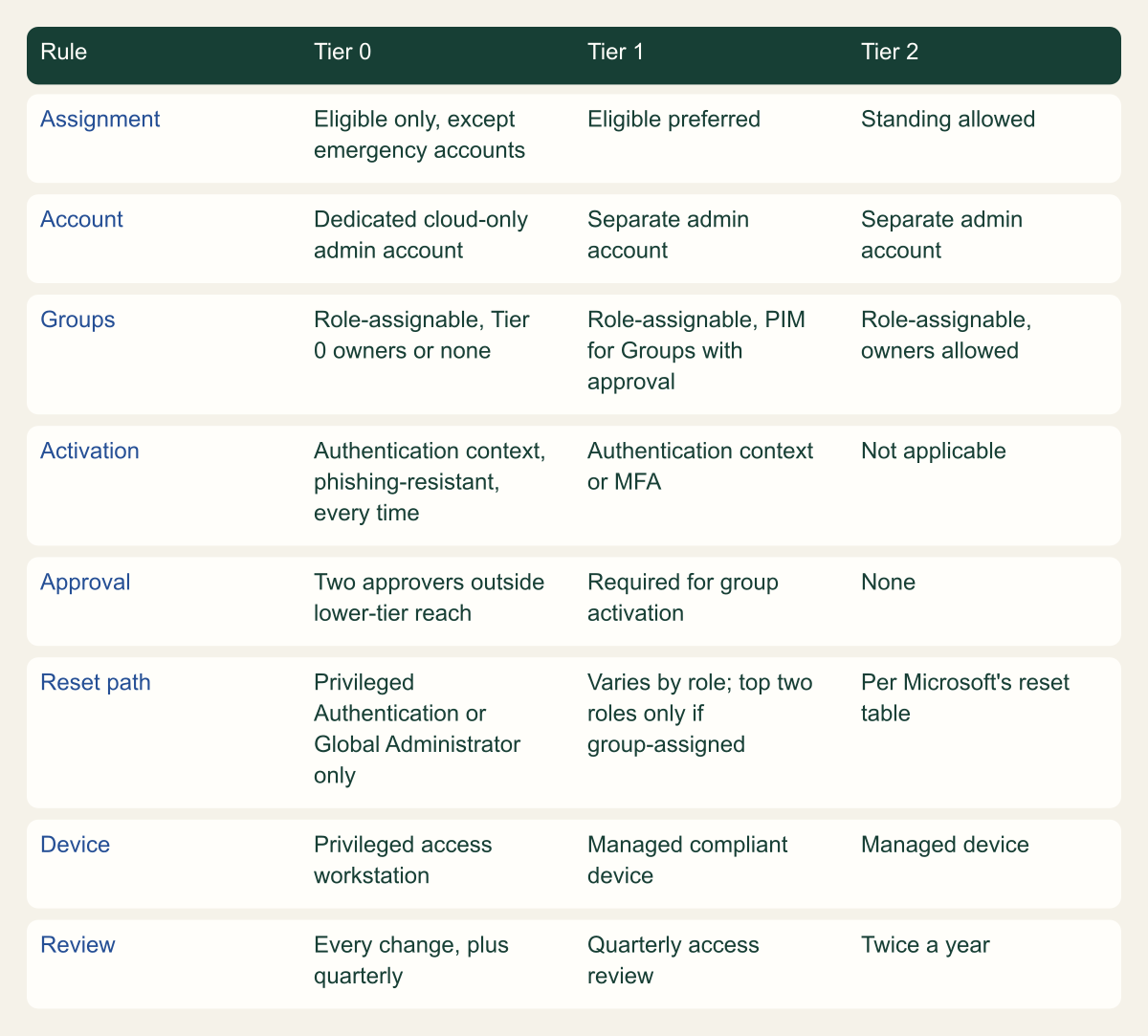
Tier 0 gets the strictest rules Microsoft documents, applied to the whole tier rather than to Global Administrator alone. Microsoft's thresholds are fewer than five Global Administrators and fewer than ten privileged role assignments; the second covers assignments of labeled roles, which include Helpdesk and Password Administrator, so read it as a prompt and hold Tier 0 to it strictly. Assign Tier 0 roles as eligible, never active, with one documented exception: the two or more emergency access accounts, which Microsoft says should hold Global Administrator as permanent active and be cloud-only onmicrosoft.com accounts that are neither federated nor synchronized. Everyone else in Tier 0 uses a dedicated cloud-only administrator account, which Microsoft's role guidance also asks for when it advises against on-premises synced accounts for role assignments. [3][5][18]
At activation, require a Conditional Access authentication context rather than relying on the plain MFA setting. Microsoft listed the option as generally available in April 2026. It can demand an authentication strength and a compliant device, and with sign-in frequency set to every time it forces reauthentication on each activation, although a 10-minute window lets one reauthentication cover several activations. Scope that policy to all users or to eligible users, never to the directory role, because the user does not hold the role yet when activating. Activation duration can be set from 1 to 24 hours, and where approval is required, Microsoft recommends at least two approvers. [8][15]
Approvers for Tier 0 should themselves be Tier 0 accounts, or at least people whose accounts the lower tiers cannot reset, since the approver sits on the path. For Tier 1, eligibility is still preferable, and group-based assignment through PIM for Groups works if activating membership requires approval: Microsoft warns that without approval, a less privileged administrator might reset a member's credentials and activate the assignment on their behalf. Scope Tier 1 roles to administrative units wherever the role supports unit scope. Tier 2 can keep standing assignments with phishing-resistant MFA and periodic access reviews. [15][17][21]
Three neighboring questions are deliberately left to other articles: what an expired activation proves about sessions already open, how just-in-time access compares across clouds, and how to bind Tier 0 sessions to their devices with token protection.
Assignment rules tighten with each tier
Tier 0 stays eligible-only on dedicated cloud-only accounts, with emergency access accounts as the documented exception. [5][15][18]

Source. Conceptual rules drawn from Microsoft's role guidance, PIM role settings, PIM for Groups, role-assignable group and emergency access documentation reviewed October 9, 2026. [5][15][16][17][18]
Method. Conceptual. Microsoft documents the mechanisms; the per-tier choices and review cadences are editorial recommendations. [5][15][17]
Accessible table and figure data
| Rule | Tier 0 | Tier 1 | Tier 2 |
|---|---|---|---|
| Assignment | Eligible only, except emergency accounts | Eligible preferred | Standing allowed |
| Account | Dedicated cloud-only admin account | Separate admin account | Separate admin account |
| Groups | Role-assignable, Tier 0 owners or none | Role-assignable, PIM for Groups with approval | Role-assignable, owners allowed |
| Activation | Authentication context, phishing-resistant, every time | Authentication context or MFA | Not applicable |
| Approval | Two approvers outside lower-tier reach | Required for group activation | None |
| Reset path | Privileged Authentication or Global Administrator only | Varies by role; top two roles only if group-assigned | Per Microsoft's reset table |
| Device | Privileged access workstation | Managed compliant device | Managed device |
| Review | Every change, plus quarterly | Quarterly access review | Twice a year |
| Rule | Tier 0 | Tier 1 | Tier 2 |
|---|---|---|---|
| Assignment | Eligible only, except emergency accounts | Eligible preferred | Standing allowed |
| Account | Dedicated cloud-only admin account | Separate admin account | Separate admin account |
| Groups | Role-assignable, Tier 0 owners or none | Role-assignable, PIM for Groups with approval | Role-assignable, owners allowed |
| Activation | Authentication context, phishing-resistant, every time | Authentication context or MFA | Not applicable |
| Approval | Two approvers outside lower-tier reach | Required for group activation | None |
| Reset path | Privileged Authentication or Global Administrator only | Varies by role; top two roles only if group-assigned | Per Microsoft's reset table |
| Device | Privileged access workstation | Managed compliant device | Managed device |
| Review | Every change, plus quarterly | Quarterly access review | Twice a year |
Stop lower tiers reaching higher accounts
The reset tables protect users who hold administrator roles. They do not protect a plain user with Tier 0 power elsewhere, such as an Azure root-scope owner or the owner of a privileged application, and those accounts move first. The documented tool is the role-assignable group. Only a Privileged Authentication Administrator or Global Administrator can change the credentials, reset the MFA or modify the sensitive attributes of its members and owners, the protection covers eligible members and owners who have not activated, and the group itself can be managed only by Global Administrators, Privileged Role Administrators and its owners. Microsoft recommends considering role-assignable creation for any group that grants access to sensitive resources, even one with no Entra role attached. [3][16][17]
The constraints are fixed at creation. isAssignableToRole can be set only on a new group and never changed, membership must be assigned rather than dynamic, no group can be nested inside, creating one needs at least Privileged Role Administrator, and a tenant can hold 500 at most. Through Microsoft Graph, changing membership needs RoleManagement.ReadWrite.Directory and Group.ReadWrite.All does not work, which means any automation that manages these groups holds a Tier 0 permission. Spend the 500 on groups that carry Tier 0 or Tier 1 roles and on groups that grant Azure Owner, User Access Administrator or privileged application roles. [10][16]
Everything else stays reachable. For ordinary groups, Microsoft names Exchange Administrators, Groups Administrators and User Administrators among the roles that can manage them, and Authentication, Helpdesk and User Administrators among those that can change the credentials of their active members. A security group that grants Owner on a production subscription and was not created as role-assignable has the tier of its most junior manager. Applications need the same treatment from the other side: remove user owners from applications that hold Tier 0 roles or permissions, or make every owner a Tier 0 account. [17]
Protected actions close a narrower gap. They attach a Conditional Access authentication context to specific permissions and are enforced when the action is attempted, however the role was granted. The supported set covers creating, updating and deleting Conditional Access policies, cross-tenant access settings, named locations, hard deletion of some directory objects, and the authentication context setting that defines protected actions. Role assignment, password reset and application credentials are not on the list, so protected actions cannot replace the controls above. What they add is a second gate on the policies that guard Tier 0: if changing a Conditional Access policy demands a phishing-resistant strength, it follows that a stolen session lacking that strength cannot rewrite the policy. [19]
Microsoft's pages disagree about status. The privileged roles page, dated June 5, 2026, calls protected actions a preview, while the protected actions overview carries no preview notice; plan for preview behavior. Step-up works in the Entra admin center, Microsoft Graph PowerShell and Graph Explorer. Azure PowerShell fails when it attempts a protected action, and creating a terms of use page or a custom control fails while Conditional Access changes are protected. Exclude an emergency access account from the policy, as Microsoft advises. [3][19]
Restricted management units and their limits
Restricted management administrative units solve a different problem from tiers: they keep tenant-wide role assignments in place while removing specific objects from their reach. Only administrators assigned at the unit's scope can change the Entra properties of its users, devices and security groups. Tenant-scoped Global Administrators and Privileged Role Administrators cannot modify members, but they can still manage the unit and assign themselves to it, which leaves an audit record. Microsoft's own example is executives and their devices, shielded from Helpdesk Administrators who could otherwise reset their passwords or read BitLocker recovery keys. [20]
The block covers Entra properties, not the services around them. Changing Exchange mailbox settings, applying Intune policies to member devices, assigning licenses, adding a member group as a SharePoint site owner and adding the unit's members to other groups all still work for tenant-scoped administrators. An executive in such a unit is protected from a help desk password reset, but not from an Exchange Administrator changing mailbox settings or an Intune Administrator configuring the executive's laptop. Microsoft 365 groups, mail-enabled security groups and distribution groups cannot be members at all. [20]
- The restricted setting is chosen when the unit is created and cannot be changed afterward. [20]
- Members cannot be managed with ID Governance features: Microsoft names PIM, entitlement management, lifecycle workflows and access reviews, so automated joiner, mover and leaver handling stops at the unit boundary. [20]
- A role-assignable group inside a unit cannot have its membership changed by its owners. Only Global Administrators and Privileged Role Administrators can change it, and neither role can be assigned at unit scope. [20]
- A Global Administrator placed in a unit cannot have a password reset by any other administrator, because no role assignable at unit scope can reset a Global Administrator; the account has to be removed from the unit first. Microsoft's list of unit-scoped roles describes a unit-scoped Privileged Authentication Administrator as able to reset any user, which conflicts with that statement, so follow the restricted unit page and test before relying on either. [20][21]
- Applications cannot modify members unless they hold an Entra role at the unit's scope; Microsoft Graph application permissions do not apply. [20]
- Deleting a unit can take up to 30 minutes to lift all protections, a tenant can hold at most 100 units, and each unit administrator needs a Microsoft Entra ID P1 license. [20]
Review the tiers when roles change
A tier list drawn in October 2026 will drift within months unless something signals when roles change, and the built-in roles page is a poor signal on its own. On October 9, 2026, the live page displayed text from the Tenant Governance Administrator description file dated October 6, 2026, including application-scoped operations to create service principals and manage application role assignments, while the page itself still reported a last update of July 17, 2026. Role descriptions live in separate include files in Microsoft's documentation source, so a permission change inside one role need not move the page date. [1][2][24]
Diff the API instead. The example below snapshots privileged role definitions, active privileged assignments and eligibility schedules with Microsoft Graph PowerShell, using the isPrivileged filters Microsoft documents. The calls need only RoleManagement.Read.Directory and run under a Global Reader account. They return principals, not people: a group in the output has to be expanded to members and owners, a service principal to its owners and to whoever can manage its credentials, and the unlabeled roles in your Tier 0 and Tier 1 lists have to be added by template ID. [3][22][23]
Run the snapshot monthly and also when any of these happens: a new built-in role appears in the Entra release notes, an application receives a Graph permission that can assign roles or manage credentials, a role-assignable group gains an owner, a service principal receives a directory role, a domain's federation settings change, or a Connect server is rebuilt. Each one can carry a principal across a tier boundary without anyone touching a role assignment. [8][10][16]
# Example: read-only snapshot of privileged Entra roles (Microsoft Graph PowerShell, beta module).
# Needs only RoleManagement.Read.Directory; a Global Reader account is enough.
Connect-MgGraph -Scopes "RoleManagement.Read.Directory"
$today = Get-Date -Format "yyyy-MM-dd"

# 1. Role definitions that carry the PRIVILEGED label (preview)
$privileged = Get-MgBetaRoleManagementDirectoryRoleDefinition -All -Filter "isPrivileged eq true" |
    Sort-Object DisplayName
$privileged | Select-Object DisplayName, TemplateId, IsBuiltIn |
    Export-Csv "privileged-roles-$today.csv" -NoTypeInformation

# 2. Active assignments of those roles, with the filter Microsoft documents
Get-MgBetaRoleManagementDirectoryRoleAssignment -All -ExpandProperty "roleDefinition" `
    -Filter "roleDefinition/isPrivileged eq true" |
    Select-Object PrincipalId, RoleDefinitionId, DirectoryScopeId |
    Export-Csv "privileged-active-$today.csv" -NoTypeInformation

# 3. Eligible assignments are separate PIM objects; filter them locally
$ids = $privileged.Id
Get-MgBetaRoleManagementDirectoryRoleEligibilitySchedule -All |
    Where-Object { $ids -contains $_.RoleDefinitionId } |
    Select-Object PrincipalId, RoleDefinitionId, DirectoryScopeId, MemberType |
    Export-Csv "privileged-eligible-$today.csv" -NoTypeInformation

# 4. Compare with the previous snapshot (example file name)
Compare-Object (Import-Csv "privileged-roles-2026-09-01.csv") `
    (Import-Csv "privileged-roles-$today.csv") -Property TemplateId, DisplayName
Where tiering adds more friction than it removes
A tenant with three administrators gains little from three tiers and a full approval chain. When every Tier 0 approver is also the only person able to do the work, approval becomes ceremony, and the emergency access accounts, which hold permanent active assignments by design, start to look like the quick route. Two tiers are enough there: Tier 0 eligible-only with an authentication context, everything else standing with phishing-resistant MFA, and the emergency access accounts kept for emergencies and exercised on a schedule. [15][18]
Restricted units break workflows by design. Microsoft warns that placing objects in one can break existing processes, and losing access reviews and lifecycle workflows for members means joiner, mover and leaver handling for those accounts has to be rebuilt by hand. A unit that protects twenty executives is affordable. One that holds two thousand users moves the help desk's work onto a few unit administrators, who then become the target. [20]
Protected actions break tools that cannot answer a claims challenge, Azure PowerShell among them, and a team that meets those failures mid-incident is under pressure to remove the policy, so settle the supported tools beforehand. Over-tiering fails in a similar way. Placing Exchange, SharePoint and Teams administrators in Tier 0 because they are powerful inside their services gives every administrator the same workstation, approval and activation rules, and rules applied to everyone erode. The takeover test exists to keep Tier 0 small enough to run strictly. [19]
The model also stops fitting where the administrative path runs outside Entra. If a third-party privileged access tool brokers every administrator session, that tool and its administrators are Tier 0 and the Entra controls become a second line. Partner administration through granular delegated admin privileges, which Entra governs with a dedicated built-in role, brings another organization's administrators into the graph, and their tiering is outside your control. In both cases, ask the takeover question about the outside party before trusting the tiers inside. [1][3]
Run the first tier review
Run the first review in this order, because each step changes what the next one finds.
- Pull every privileged role definition, active assignment and eligibility schedule, then add the unlabeled roles you place in Tier 0 or Tier 1 by template ID.
- Expand groups to members and owners and service principals to owners and credential managers, then list PIM approvers, applications holding role-granting or credential-managing Graph permissions, and every Connect server. [10][15]
- Mark Tier 0 from the six target rows that only Privileged Authentication Administrator and Global Administrator can reach, plus the non-role paths. Anything that reaches a Tier 0 principal in one step is Tier 0. [3]
- Move plain users who hold Tier 0 power into role-assignable groups, remove user owners from Tier 0 applications, and make every Tier 0 role eligible-only behind an authentication context. [15][16]
- Add restricted management units for executives and protected actions on Conditional Access changes, then schedule the monthly snapshot. [19][20]
Method and provenance
Source-led governance analysis of Microsoft Entra, Microsoft Graph, Microsoft Entra Connect and Microsoft security documentation, with one third-party role review used as a dated comparison point. Role and label counts and the reset and sensitive action reach were counted by script from the published documentation source and checked against the rendered Learn pages. Sources were reviewed on October 9, 2026.
No Entra tenant was configured or tested. Tier placements, assignment rules and review cadences are editorial judgments built on the cited documentation; the PRIVILEGED label and protected actions are described by Microsoft as preview, and role lists and permissions can change after the review date.
AI assistance. AI assisted research synthesis, counting scripts, drafting, diagram planning and visual production, with deterministic editorial checks. No personal administration experience, independent human review or live test is claimed.
Published under the Cloud Security Desk organizational byline. Read the practitioner guide policy.
References
- Microsoft Entra built-in roles Microsoft. Accessed .
- Privileged roles and permissions in Microsoft Entra ID (preview) Microsoft. Accessed .
- unifiedRoleDefinition resource type (Microsoft Graph beta) Microsoft. Accessed .
- Best practices for Microsoft Entra roles Microsoft. Accessed .
- Securing privileged access for hybrid and cloud deployments in Microsoft Entra ID Microsoft. Accessed .
- Managing Privileged Roles in Microsoft Entra ID: A Pragmatic Approach TrustedSec. Published . Accessed .
- Microsoft Entra releases and announcements Microsoft. Accessed .
- Troubleshoot Microsoft Entra Connect Sync errors (InvalidHardMatch) Microsoft. Accessed .
- Microsoft Graph permissions reference Microsoft. Accessed .
- Microsoft Entra Connect prerequisites: harden your Microsoft Entra Connect server Microsoft. Accessed .
- Elevate access to manage all Azure subscriptions and management groups Microsoft. Accessed .
- Privileged access devices Microsoft. Accessed .
- Enterprise access model Microsoft. Accessed .
- Configure Microsoft Entra role settings in Privileged Identity Management Microsoft. Accessed .
- Use Microsoft Entra groups to manage role assignments Microsoft. Accessed .
- Privileged Identity Management (PIM) for Groups Microsoft. Accessed .
- Manage emergency access admin accounts Microsoft. Accessed .
- What are protected actions in Microsoft Entra ID? Microsoft. Accessed .
- Restricted management administrative units in Microsoft Entra ID Microsoft. Accessed .
- Assign Microsoft Entra roles: roles that can be assigned with administrative unit scope Microsoft. Accessed .
- List roleDefinitions (Microsoft Graph beta) Microsoft. Accessed .
- List roleEligibilitySchedules (Microsoft Graph beta) Microsoft. Accessed .